The Gravity Forms Address Autocomplete plugin revolutionizes how users enter location information on your WordPress forms by integrating Google Places API functionality directly into Gravity Forms address fields. This powerful tool transforms standard address inputs into intelligent fields that predict and autofill addresses as users type, significantly reducing form abandonment rates and ensuring consistently accurate, formatted address data.
Key Advantages of Implementing Address Autocomplete
Implementing this functionality delivers substantial benefits for both form administrators and users:
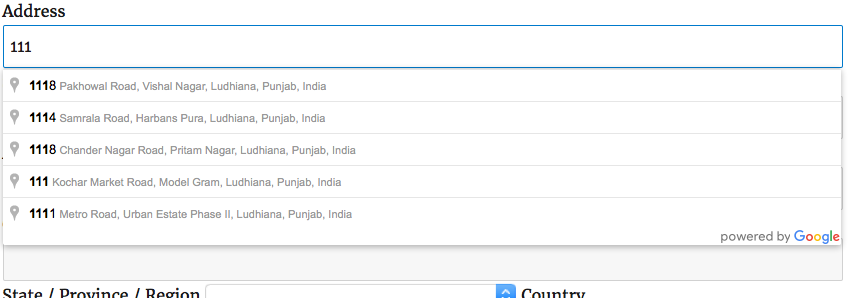
- Enhanced User Experience: Visitors can enter addresses 3x faster with predictive suggestions that appear after just 2-3 keystrokes
- Data Accuracy Improvement: Eliminates typos and inconsistent formatting by pulling standardized address data directly from Google’s database
- Mobile Optimization: Dramatically improves form completion rates on mobile devices where typing lengthy addresses is cumbersome
- International Compatibility: Supports address formats for over 200 countries with localized structure and field labeling
Installation Process Made Simple
Getting started with the Address Autocomplete plugin is straightforward with two equally effective installation methods:
Method 1: Direct WordPress Upload
- Download the plugin ZIP file received after purchase
- Navigate to WordPress Admin Dashboard → Plugins → Add New → Upload Plugin
- Select the downloaded ZIP file and click “Install Now”
- Activate the plugin through the WordPress plugin management interface
Method 2: Manual FTP Installation
- Download and extract the plugin ZIP file to your local machine
- Using an FTP client like FileZilla, upload the extracted folder to your WordPress installation’s plugins directory (typically /wp-content/plugins/)
- Access your WordPress dashboard and navigate to the Plugins section
- Locate “Gravity Forms Address Autocomplete” in the plugin list and click “Activate”
Both methods achieve the same result – choose based on your technical comfort level and server access permissions.
Configuring Address Autocomplete in Your Forms
Once installed, activating autocomplete functionality takes just minutes:
- Ensure Gravity Forms is installed and active on your WordPress site
- Edit an existing form or create a new one containing address fields
- Select the address field where you want autocomplete functionality

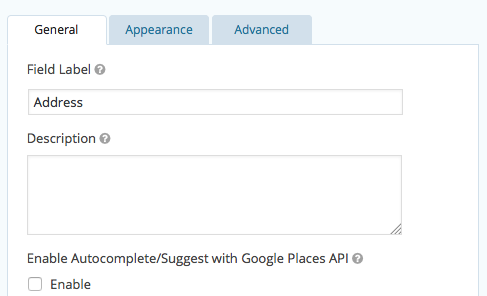
- In the field’s General Settings, locate the “Enable Autocomplete/Suggest with Google Places API” option and check the box
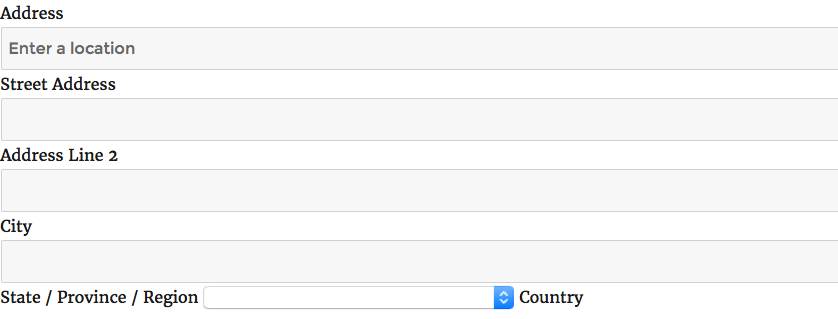
- Save your form changes and view the frontend to see the transformation
Configuring Your Google API Key
While many implementations work without additional configuration, some server environments require a Google API key for full functionality:
- Visit the Google Cloud Platform Console and create a new project
- Enable both “Places API” and “Maps JavaScript API” in the API Library
- Navigate to Credentials → Create Credentials → API Key
- Copy the generated API key and paste it into the plugin’s settings page in WordPress
- Restrict your API key to your domain under “Application restrictions” to prevent unauthorized usage


Advanced Configuration Options
Beyond basic setup, the plugin offers powerful customization features:
- Country Restriction: Limit address suggestions to specific countries through the field settings, ideal for businesses serving specific regions
- Custom Place Types: Filter suggestions to only show certain establishment types (cities, addresses, businesses)
- Autocomplete Triggers: Adjust the number of characters required before suggestions appear (default: 2 characters)
- Geolocation Bias: Prioritize addresses near the user’s current location when available
Version History and Feature Evolution
The plugin continues to evolve with regular updates and enhancements:
- Version 2.0 (August 2016): Introduced API key management interface and country restriction capabilities, significantly improving security and geographic targeting
- Version 1.5: Added mobile viewport optimization and improved cross-browser compatibility
- Version 1.2: Resolved conflict issues with third-party themes and implemented performance enhancements
Getting Support and Providing Feedback
For customized implementations or troubleshooting assistance, email our support team directly with detailed information about your setup and requirements. If you encounter challenges during installation or configuration, include:
- Your current Gravity Forms version
- WordPress version
- Other active plugins
- Specific error messages (if any)
We value user feedback to continually improve the plugin. If you’ve had a positive experience, please consider rating the plugin – your endorsement helps other Gravity Forms users discover this powerful functionality.