Building a portfolio, an e-commerce catalog, or a content-rich blog requires presenting visual media in a way that is both intuitive and elegant. When visitors land on a page filled with thumbnails, their first instinct is to scan. But how they prefer to scan—whether through a dense visual grid or a streamlined list—often depends on the type of content and their specific goal. Enter Grid List jQuery Plugin, a utility crafted by CodeCanyon author Sike. This isn’t just a gallery script; it is a view-toggling engine that gives users the autonomy to switch between a grid thumbnail layout and a list layout with a single click. By prioritizing fluid CSS3 transitions and a lightweight footprint, this plugin bridges the gap between user interaction and visual clarity. For developers and site owners who need a dependable, no-frills solution to organize product images or blog thumbnails, this tool offers a seamless interactive experience that feels native to the modern web.
Rather than forcing a one-size-fits-all display method on your audience, this plugin empowers them to choose their preferred browsing mode. The core function is simple: transform a static set of thumbnails into a dynamic, switchable view. But the refined execution—featuring smooth animations, hover states, and graceful degradation for older browsers—is what sets it apart from custom-coded afterthoughts. This article takes a comprehensive look at the Grid List jQuery Plugin, dissecting its architecture, exploring its ideal implementation scenarios, and weighing its strengths against potential limitations. By the end, you will have a clear understanding of whether this asset is the missing piece in your front-end toolkit.
Key Features
To appreciate what this plugin brings to your stack, it’s essential to look under the hood at its core functionalities. These are not just bullet points; they are the pillars that dictate user experience and site performance.
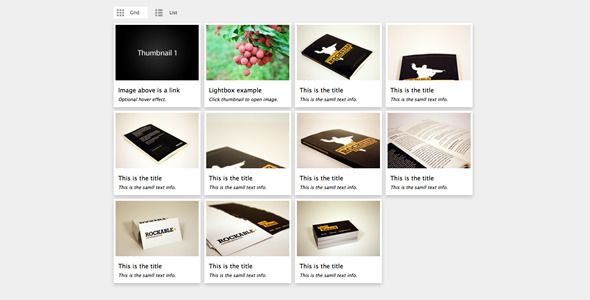
- Seamless Grid and List Switch: The transition is not a jarring reload or a flash of unstyled content. Instead, the plugin leverages CSS3 transitions to effortlessly morph the layout between a structured grid of thumbnails and an indented, information-dense list. This visual continuity keeps the user oriented while their viewing context changes.
- Graceful Fallback for Legacy Browsers: While modern development often ignores Internet Explorer, this plugin acknowledges that enterprise and legacy environments still exist. For browsers like IE8, which do not support CSS3 3D transforms, the plugin automatically defaults to a fade effect. This ensures that functionality is never compromised simply because of the rendering engine; the user still gets a clear visual cue that the layout has changed, just with reduced motion.
- Optional Hover Effects: Visual feedback is critical in interactive media. The plugin allows you to enable subtle hover states on the thumbnails. This draws attention to the item being considered for a click, establishing a clear focal point without being distracting. It adds a layer of polish that makes the gallery feel alive and responsive to the cursor.
- Clean and Lightweight Architecture: There’s a distinct advantage to using a specialized plugin that sticks to its core mission. Bloat is a common issue in multi-purpose plugins; however, this script is designed to do one thing well. The minimal footprint helps maintain your page’s loading speed, which is vital for Core Web Vitals and mobile performance metrics.
- Future Updates Included: When you purchase a code asset, maintenance is a major factor. The author commits to free updates going forward. This means you are not buying a dead product; you are investing in utility that will adapt to shifts in browser updates and developer feedback.
Who Is This For? Use Cases
The versatility of a grid/list switcher makes it applicable across a surprisingly broad spectrum of web projects. It solves a cognitive load issue: some users prefer visual browsing, while others are hunting for specific text details or file information. Here is a deeper dive into the archetypes and scenarios that benefit most.
E-commerce and WooCommerce Store Owners
Take a clothing store or a multi-vendor marketplace. A grid view is ideal for showcasing new arrivals and letting customers browse styles quickly. However, when a customer is comparing prices, models, and size availability, a list view becomes dramatically superior. By integrating the Grid List jQuery Plugin, you allow shoppers to switch from an inspiring 'shop front' view to a 'comparison sheet' list where descriptions are aligned left and are easier to read. This can increase engagement by letting the user dictate their shopping behavior, potentially reducing bounce rates.
Portfolio Owners and Digital Artists
Photographers and designers want their work to look stunning. The grid mode gives images the space to breathe, showing clean lines and colors at a glance. But, for potential clients who want to understand the context of the project or read a case study, the list mode can incorporate more text without looking cluttered. It allows a portfolio to serve double duty—acting as a gallery for browsers and a resume for readers.
News Aggregators and Content-Rich Blogs
Magazine-style layouts often struggle to balance imagery with headlines. In grid mode, you get a visual card layout that is aesthetically pleasing. However, heavy readers often prefer a list layout that mimics a table of contents—showing the title first, followed by the excerpt and date. This plugin gives your content engine the flexibility to satisfy both skimmers and readers, making it an excellent asset for sites utilizing Joomla, WordPress, or even static HTML templates.
File and Media Download Libraries
For sites that offer resources (like Photoshop mockups, icons, or stock photography), the user experience is transactional. A list view allows for easier scanning of file sizes, formats, and licenses—information vital to a download decision. The grid view serves as the 'visual eye-candy' entrance. Combining both keeps direct download links accessible while maintaining visual appeal.
Technical Details & Compatibility
Understanding the technical foundation of a plugin is crucial for developers who need to integrate it without breaking existing code structures. This script was built to work in conjunction with jQuery and specific lightbox libraries.
First and foremost, this plugin is a standalone package available via the Envato Market (CodeCanyon). It is light on dependencies, requiring just the core jQuery library to operate. Notably, the prettyPhoto lightbox is cited as the recommended companion for handling large image displays once a thumbnail is clicked. This is a mature, robust lightbox solution, ensuring that the visual experience does not end at the switch.
Browser support is a layered strategy. For Chrome, Firefox, Safari, and modern Edge, the interactivity is driven by 3D CSS transforms. This allows browsers to utilize GPU acceleration, resulting in buttery-smooth layout shifts that do not stutter or skip. For older versions of Internet Explorer, the code intelligently detects the lack of support and triggers a display: none to block logic with a fade animation, ensuring the view still switches functionally. The visual polish is lost, but the asset remains fully usable.
One of the significant technical selling points is the lack of server-side dependencies. It is entirely a client-side CSS and JavaScript solution. This means it will function seamlessly across any backend—whether you are using PHP, Ruby on Rails, Node.js, or a flat HTML mockup. There are no database migrations or server configuration changes necessary; just link the files and initialize the plugin on your DOM container.
Pros and Cons
No product is perfect for every situation. A balanced review requires looking at this plugin through a pragmatic lens, recognizing what it excels at while admitting its boundaries. This balanced viewpoint helps ensure you select the right tool for your project.
Pros
- High Usability: The intuitive control gives users the immediate ability to change their view. This has been shown to positively affect dwell time as users interact with the toggle rather than just scrolling or bouncing.
- Performance Focused: The minimal code weight means it will not significantly impact page speed. In an age where every kilobyte counts, using a utility-specific plugin is far better for performance than loading a heavy page-builder module that does this on the side.
- Visual Sophistication: Using CSS3 transitions makes the switch feel modern and expensive, akin to native mobile applications, rather than the crude show/hide text formatting seen in older scripts.
- Cross-Browser Integrity: The graceful fallback for older browsers respects the 'progressive enhancement' coding methodology. It ensures that your content is not hidden or your layout broken for the remaining percentage of IE users without punishing modern users with subpar effects.
Cons
- Requires Additional Styling: The plugin provides the mechanics of the switch, but the visual layout of the grid columns and list rows themselves must be defined in your CSS. It is not a plug-and-play theming engine; it requires a basic understanding of CSS Flexbox or Floats to look pristine out of the box.
- No Integrated Lightbox: To view the larger image after a click, you need to link to an external library (like prettyPhoto). While this is good for weight, it requires the developer to configure an extra dependency for the 'complete media experience'.
- Lack of 'Masonry' Support: If your grid is intended to have a Pinterest-style mishmash of heights, implementing a multi-size layout with this tool will require custom JavaScript to recalculate heights when switching views. It works best with standard-sized, uniform thumbnails.
Frequently Asked Questions
When evaluating a specific code snippet for a project, certain practical queries arise. Below are the answers to the most common considerations buyers have before installation.
Is the Grid List jQuery Plugin compatible with popular page builders like Elementor or WPBakery?
Yes and no. Since this is a standalone jQuery script, it does not integrate natively with the drag-and-drop widgets of page builders. However, you can use the 'Custom HTML' or 'Raw JS' blocks provided by those builders to add your custom markup and call the plugin script. It works best for developers who are building custom modules or editing theme files directly rather than relying solely on visual builders.
Does the plugin include support for mobile touch devices?
While the description focuses on mouse-based hover effects and clicks, CSS3 transitions are generally well-supported on iOS and Android browsers. The core functionality of switching views will work perfectly on touch devices—activation will occur via tapping the toggle button you create. However, custom hover effects will only appear on devices that support hover states; mobile devices generally ignore them, which is standard behavior for most web interfaces.
Can I use multiple independent grids on the same page without conflict?
Yes. The plugin is coded to accept a specific selector. You can instantiate it multiple times on unique IDs or classes. By keeping the initialization function scoped to its container, you can have one grid acting as a portfolio, and another acting as a product list, all on the same URL without any JavaScript variable collisions. Just ensure you target the correct parent container for each instance.
Final Verdict
In a saturated market of multi-layered slideshow scripts and heavy plugins, there is genuine value in simplicity. The Grid List jQuery Plugin fills a specific, necessary niche: it allows e-commerce sites, digital agencies, and large archives to alter their information architecture on-the-fly based on user preference. It respects the visitor’s behavior, which is the quintessential cornerstone of good UX design. The reliance on modern CSS3 transitions for smoothness, combined with the pragmatic fallback to fades for IE, shows an authoring maturity that prioritizes both innovation and backward compatibility.
Author Sike has a solid presence in the CodeCanyon market, offering other respected utilities like the jQuery OneByOne Slider. The commitment to free updates signals confidence in the product’s longevity. While it requires you to provide your own visual styling to match your brand, the heavy lifting of state management and animation logic is handled efficiently. It reduces the time developers spend writing custom 'if/else' toggles from scratch. If your current theme struggles to balance text information with image hierarchy, this utility offers a direct, effective, and affordable resolution.
Stop forcing your visitors into a single lane. Empower them with the freedom to visualize their journey through your content. Whether they want a broad catalog overview or a deep, text-driven review, you can provide both instantly. Click the link, download the Grid List jQuery Plugin from CodeCanyon, and elevate the navigational intelligence of your next project today.